
Decide what the timeline should help you find
An age-based timeline answers “What did my baby look like at six months?” A calendar answers “What happened in December?” Keep both the capture date and the child’s age available so you can move between these two ways of remembering.
Start with a single child and a few known photos. Before sorting the whole library, check that a birth-day photo, a monthly birthday photo, and a recent photo appear where you expect.
Use one consistent age convention
For a baby born on April 10, a photo taken on June 10 is from the two-month birthday. June 9 is still before that boundary. A calendar month such as June contains parts of two different age ranges.
For birthdays on the 29th, 30th, or 31st, review the boundary used in shorter months. When you compare photos across children or apps, use the same convention. Age labels describe elapsed time; they are not a developmental assessment.
Check the dates of imported and shared photos
An album can only be as reliable as the dates available to it. A screenshot, scanned print, or image saved from a message may have a date that does not represent when the original moment happened.
Compare a questionable date with your own original, a nearby photo, or a family note. If you cannot establish the day, keep an approximate age label in your planning notes rather than pretending to know an exact date.
- Birthday: is the baby profile correct?
- Capture date: is this the original photo or a later copy?
- Midnight or travel: could a time-zone difference explain a boundary mismatch?
- Photo access: is the picture available to the app?
Add milestones without losing ordinary days
Use memorable events as signposts: coming home, a family visit, a favorite outing, or a birthday. Keep everyday portraits and videos in the timeline too. Avoid turning a milestone list into deadlines for what a baby should be doing.
For a useful growth comparison, choose photos with similar framing and lighting. Write down the age of each picture so the comparison is understandable later.
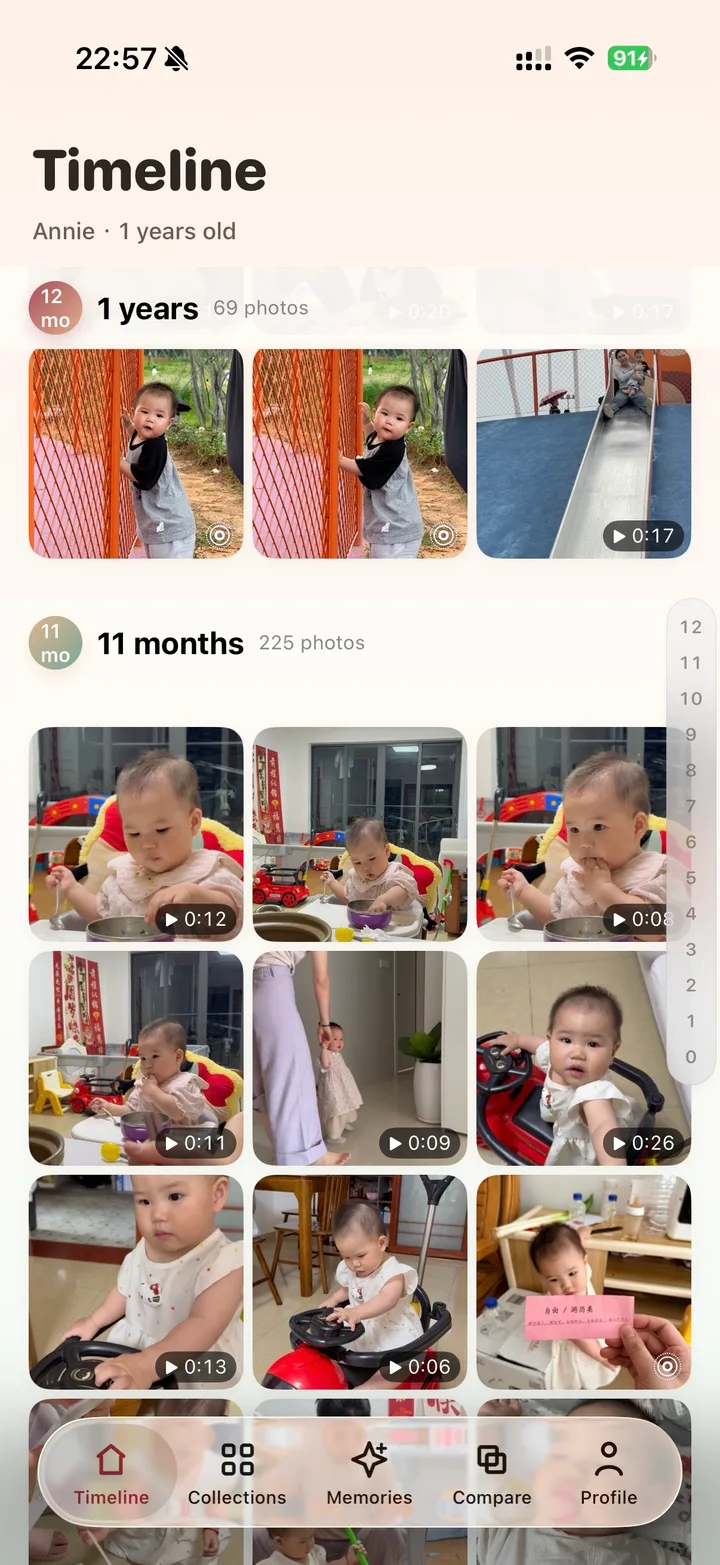
Browse the timeline in BabyTime
BabyTime uses your baby’s birthday and photo timestamps to organize your existing iPhone library by age. Core recognition and indexing happen on device. It is a browsing and organizing tool; the current release does not provide a shared cloud family album.
Try locating one familiar month, then a photo from a different stage. If the result is useful, use collections and growth comparison to revisit the moments you care about.
Give your timeline a practical next use
A timeline becomes more useful when it feeds a small project: a birthday recap, a family message, or a printed album. Make a short selection from each month instead of restarting from the full library.
Plan a first-year album month by monthTurn the method into a real timeline
Continue to the age-based organizing page, or download BabyTime and start with your existing photos.